


Element Smart TV Remote
4.543.00 Reviews
App Specs
- Version
- 5.0
- Updated On
- License
- Free
- Downloads
- 50,000+
- Developer
- Naba
- Categories
- House & Home
- Platform
- Android
Screenshots
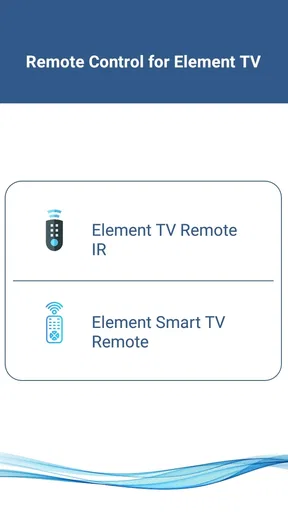
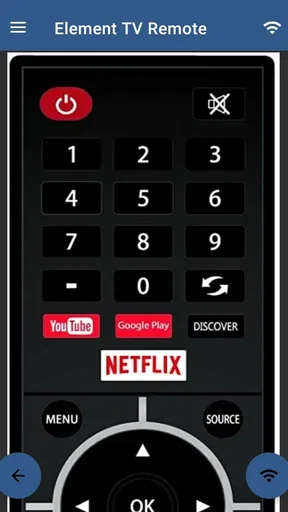
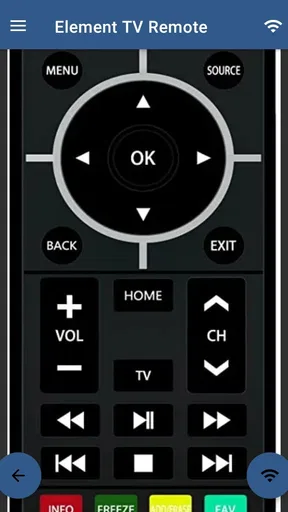
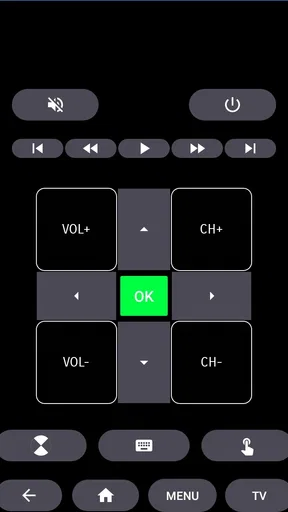
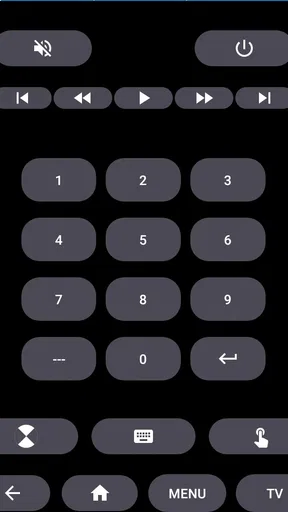
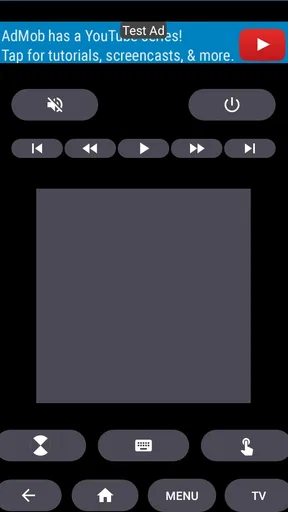
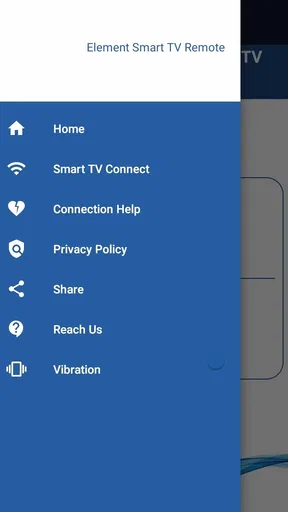
 Analysis by AppCompare
I installed Element Smart TV Remote expecting a straightforward way to control an Element Smart TV from a phone, and that is exactly the kind of tool it aims to be. It belongs to the House & Home category, is free to use, and is made by Naba. The basic idea is simple: put the phone and television on the same Wi-Fi network, open the app, and use the phone as a remote.
That simplicity is useful, but it also explains where most frustration comes from. This is not a universal remote that works independently of the home network. Its success depends on the television being reachable, the phone being connected to the correct network, and the TV being compatible with the control method the app expects. Once those conditions are right, it can be a convenient replacement for a misplaced physical remote. When they are not, repeatedly tapping the app usually does not solve the real problem.
What the app is really useful for
In everyday use, the main benefit is convenience rather than a large collection of advanced controls. I found the concept most helpful when the physical remote was buried under cushions, left in another room, or temporarily unavailable. A phone is usually close at hand, so turning it into a controller can save a surprisingly annoying search.
The same Wi-Fi requirement is both the app’s strength and its main limitation. It avoids the need to point the phone directly at the television in the way a traditional infrared remote does, but it also means the devices must be able to communicate across the local network. If the TV is offline, still starting up, or connected to a different network, the app may appear unresponsive even though the application itself is functioning normally.
I would describe this as a focused remote-control app rather than a complete smart-home hub. Its value is concentrated in one task: controlling an Element Smart TV from a mobile device. That focus makes it easy to understand, but it also means it should not be chosen by someone looking for a single controller for several television brands or a broader home-entertainment system.
Where people usually get stuck
The most common stumbling block is assuming that “connected to Wi-Fi” means “connected to the same network.” A phone may be online through mobile data, a guest network, or a different wireless access point while the television remains on the household network. From the user’s point of view, both devices have internet access, but the app needs local communication between them, not merely separate internet connections.
Another easy mistake is opening the app before the TV is fully awake. If the television is still booting, has lost its network connection, or is sitting in a state where its wireless functions are unavailable, the phone may not discover it immediately. I recommend waiting until the TV has finished starting before judging whether the app works.
Worth Reading Before You Choose

EA SPORTS FC Mobile 26 Is a Bigger Football Game, but It Takes Time

Flipboard Shows What News Apps Must Do Beyond the Feed

Switching to Android Auto Means Rethinking Your Driving Routine

Google Calendar Makes a Crowded Week Easier to Manage

Ludo King Makes the Most of the Minutes Between Plans

Baby Panda World Brings Quick Play to Modern Phones, but Its Game Library Feels Busy
Network names can also be misleading. Two Wi-Fi networks may look almost identical, especially in homes with separate bands or an extender. A phone connected to one access point and a TV connected to another may still browse the web normally, yet fail to find each other. Checking the exact network name on both screens is more useful than simply checking whether the Wi-Fi symbols are visible.
There is also a practical expectation issue. A phone-based controller is not always as quick as a physical remote for every action. You need to wake the phone, unlock it if necessary, open or return to the app, and then tap the control. That is acceptable for occasional use, but someone who changes channels constantly or navigates menus for long periods may still prefer the tactile speed of a dedicated remote.
Setup checks that save time
I would begin with the television rather than the app. Confirm that the Element TV is powered on and that its own network connection is active. If the TV cannot reach its usual online services or network settings, the phone controller is unlikely to work until that underlying connection is restored.
Next, check the phone’s Wi-Fi connection and compare its network name with the one shown on the television. Temporarily disabling mobile data can make troubleshooting clearer because it removes one possible route the phone might use instead of the local Wi-Fi connection. This does not repair the network, but it helps confirm that the phone is actually using the intended wireless link.
For the first attempt, I would keep the phone and TV on the same ordinary home network rather than a guest network. Guest networks often isolate devices from one another, which is useful for visitors but unsuitable for a phone that needs to discover a television. If the home uses an extender, mesh system, or multiple access points, try the simplest nearby connection first to reduce variables.
It is also worth checking that the app is current and that the phone is not restricting its ability to communicate locally. The exact settings differ between Android and iOS, so I would look through the phone’s app permissions and network-related settings without enabling anything unrelated. The goal is to allow the app to perform its remote-control task while keeping the rest of the device configuration unchanged.
The most useful setup habit is to change one thing at a time. Restarting the phone, television, router, and app simultaneously may seem efficient, but it makes it difficult to know what actually fixed the issue. I prefer this order: verify the TV’s network, verify the phone’s network, close and reopen the app, and only then restart equipment if necessary.
Recovering the workflow when control stops
If the app worked earlier and suddenly stops responding, I would not immediately assume that the installation is damaged. First, check whether the TV has gone into a deeper standby state or lost its network connection. A television can remain physically powered while its network availability changes, particularly after a router restart or a temporary wireless interruption.
Closing the app completely and opening it again is a sensible next step. This gives it another opportunity to locate the television instead of relying on an earlier connection attempt. If the phone recently moved between wireless networks, reconnecting to the intended Wi-Fi before reopening the app is especially important.
When the TV is still missing, restarting both devices can clear a temporary communication problem. I would restart the television in its normal way, then reconnect the phone to Wi-Fi and try again. If the router has recently been restarted, allowing the network a little time to settle before testing can prevent a false conclusion that the app has failed.
A useful recovery technique is to test the app in a quiet situation rather than during a busy evening. If several devices are streaming, downloading, or changing network connections, it becomes harder to identify whether the problem is discovery, Wi-Fi stability, or the television itself. Testing with the phone close to the TV and with both devices on the same uncomplicated network gives the clearest result.
I would avoid repeatedly reinstalling the app as a first response. Reinstallation may remove local state, but it cannot make two devices communicate when they are separated by network settings. It is more appropriate after ordinary restart and network checks have failed, and even then it should be treated as a reset attempt rather than a guaranteed fix.
When the app is not the cause
Sometimes the real issue is the television’s network behavior. If other functions on the TV cannot connect, the app is only exposing a problem that already exists. In that situation, repairing the TV’s Wi-Fi connection or checking the router is more productive than changing the phone controller.
The router can also be the source of the trouble. Device isolation, guest-network rules, and certain access-point arrangements can prevent local devices from seeing one another while allowing both to access the internet. I would check the router’s ordinary home-network arrangement before blaming the application, especially if the phone and TV both show strong Wi-Fi signals.
Physical distance is less important than local network design here. Moving the phone closer to the television may help with phone reception, but it will not fix an isolated guest network or a TV that is connected elsewhere. This is an important distinction: the app communicates through Wi-Fi, so pointing the phone at the screen or standing directly beside it is not the same as improving the connection it needs.
The television model and its software state also matter. The app is specifically intended for Element Smart TV control, but “Element Smart TV” covers a range of devices and software versions. If a particular television does not respond after careful same-network checks, compatibility with that model or its current software may be the issue. In that case, the original remote or a model-specific alternative may be the more dependable choice.
There is another limitation that is easy to overlook: a phone controller cannot help much if the TV cannot be brought into a usable network state in the first place. If the physical remote is required to complete initial network setup, change a disconnected Wi-Fi configuration, or recover from a reset, keeping the original remote available is sensible. This app is best viewed as a convenient companion, not a complete replacement for every stage of television ownership.
Everyday situations where it makes sense
Imagine settling down to watch something and discovering that the remote is in another room. If the television is already connected to the home network and the phone is on that same network, this app can turn a small interruption into a quick fix. I especially like that scenario because it uses the app for what it does best: immediate access to a familiar TV without searching for hardware.
It can also help in households where the physical remote is shared, misplaced, or temporarily unavailable. A family member can use a phone when the main remote is being used elsewhere, provided the TV and phone remain reachable on the same Wi-Fi. That makes the app practical for occasional control, even if I would not rely on it as the only control method in the home.
For older users or guests, the phone interface may be less comfortable than a physical remote. Touch controls lack the raised buttons and consistent spacing that make a hardware controller easy to use without looking. I would recommend the app to someone who already feels comfortable navigating a phone, while keeping a physical option available for anyone who finds on-screen controls tiring or confusing.
It is also useful for people who frequently misplace small objects but keep their phone nearby. That is not a technical advantage, but it is a real behavioral one. The best remote is often the one you can find quickly, and a phone can be easier to locate than a slim television controller.
How it compares with the usual alternatives
Compared with the original Element remote, the app is more convenient when the hardware is missing and less convenient when you want instant, tactile control. The physical remote does not depend on the phone’s battery, app access, or Wi-Fi arrangement. It is therefore the safer primary option for family rooms, guest rooms, or situations where the network is unreliable.
Compared with a generic universal remote app, this one has a narrower purpose. That can be an advantage if you own an Element Smart TV and want a focused tool instead of a long brand-selection process. On the other hand, a broader universal solution may be better for someone who wants to control several brands or combine television control with other home-entertainment devices.
Compared with a dedicated universal hardware remote, the phone app costs nothing and avoids buying another accessory. The trade-off is that it uses a device you may need for other things and depends on the local network. A hardware remote is usually better for rapid, repeated use, while this app is more appealing as a backup or convenience option.
The app’s free price makes experimentation easy, and its Everyone content rating means it is presented for a broad audience. It supports older devices as well, with a minimum operating-system requirement of Android 4.4. That makes it accessible to people using an older Android phone, although a compatible operating system alone does not guarantee that every Element television will behave identically.
What its track record suggests
The app has reached over fifty thousand installs and holds a 4.5 average from more than four hundred ratings, with dozens of written reviews. I see that as a positive sign that the basic idea works for a meaningful group of users, but I would still interpret those figures alongside the network requirement. A good rating does not remove the need for correct setup, and a poor first connection does not automatically mean the app is defective.
Naba released it in April 2022, and the current version is 5.0. That gives the app a clear place in the current software landscape without changing the practical advice: successful use still depends on the TV, phone, and Wi-Fi network being ready to communicate. I would update before troubleshooting deeply, because an older installation can make diagnosis needlessly confusing.
The strongest positive point is its focused usefulness. It does not ask me to rethink how I use the television; it simply offers another way to send controls from a phone. The largest weakness is equally focused: when discovery fails, the app gives the impression of being broken even though the problem may be the network, standby state, router configuration, or television compatibility.
Who should use it and who should skip it
I would recommend it to an Element Smart TV owner who wants a free backup remote, already has a stable home Wi-Fi network, and is comfortable checking basic connection settings. It is particularly suitable for occasional control, misplaced-remote situations, and households where a phone is more reliably available than the original controller.
I would be cautious about recommending it as the sole remote for someone who needs guaranteed operation during network outages, prefers physical buttons, or regularly controls several different devices. It is also not the right first choice for a television that has not yet been connected to Wi-Fi or cannot be reached through the home network. In those cases, the original remote or a dedicated compatible controller is more practical.
Before installing, I would make one simple decision: do you want a convenient phone-based backup, or do you need a complete replacement for hardware control? For the first goal, this app is a sensible fit. For the second, its same-network design creates a dependency that may become inconvenient at exactly the moment you need a remote most.
My practical verdict
After using it, I see Element Smart TV Remote as a useful, narrowly defined household tool. It succeeds when the phone and television share the same Wi-Fi and the TV is already available on that network. In that situation, it can save time and remove the annoyance of hunting for a physical remote.
Its setup is not difficult, but it is less forgiving than a traditional controller. The key is to troubleshoot the connection in the right order instead of treating every failed tap as an app problem. Check the TV, compare the exact Wi-Fi networks, avoid guest-network isolation, reopen the app, and restart equipment only when those basic checks point toward a temporary connection issue.
For a free app from Naba with a current version of 5.0, a broad Everyone rating, and a solid user response, I think it is worth trying if you own the intended type of television. I would keep the physical remote nearby, though. Use this as a convenient backup and everyday shortcut, not as a promise that your phone can replace every part of the TV setup.
Pros
- Works with many Android TV and smart TV brands
- Simple layout makes essential controls easy to find
- Quick access to volume
- channels
- navigation
- and playback
- Useful replacement when the physical remote is missing
- Usually connects quickly over the same Wi-Fi network
Cons
- Requires the phone and TV to share the same Wi-Fi network
- Some features may vary depending on the TV model
- Ads can interrupt the remote-control experience
- Initial pairing may require confirming a code on the TV
- Power controls may not work reliably on every compatible device
FAQs for Element Smart TV Remote
What is Element Smart TV Remote, and how does it work?
Element Smart TV Remote is a mobile remote-control app designed to operate compatible Element televisions from an Android or iOS device. After installing it, you generally connect the phone and TV to the same Wi-Fi network, select the television, and use on-screen controls for navigation, volume, power, input selection, and playback. Compatibility can vary depending on the TV model and operating system.
Is Element Smart TV Remote compatible with every Element television?
No, compatibility is not guaranteed for every Element TV. The app usually works best with Element smart televisions that support network-based remote control, while older models or basic non-smart TVs may require an infrared signal or a physical remote. Before downloading, check the app listing, your television model, and whether both devices support the required connection method.
Does my phone and Element TV need to be connected to the same Wi-Fi network?
In most cases, yes. Network-based remote apps need the smartphone and television to communicate through the same local Wi-Fi connection. If the devices are connected to different networks, the app may fail to discover the TV or may disconnect during use. Guest networks, VPNs, router isolation, and weak wireless signals can also prevent successful pairing.
Can Element Smart TV Remote replace the original physical remote?
The app can provide many of the everyday controls found on the original remote, including navigation, volume adjustment, input switching, power control, and media playback. However, certain buttons or advanced functions may be unavailable, especially on older or less-supported TV models. It is best viewed as a convenient backup or alternative rather than a guaranteed replacement.
What should I do if the app cannot find or control my Element TV?
First, confirm that the television is powered on and that the phone and TV are using the same Wi-Fi network. Restarting both devices, reopening the app, and disabling a VPN can resolve common connection problems. You should also verify that the TV allows mobile or network control. If pairing still fails, the model may not be supported, or a physical remote may be required.


